About Gongjindan Screenshot Editor
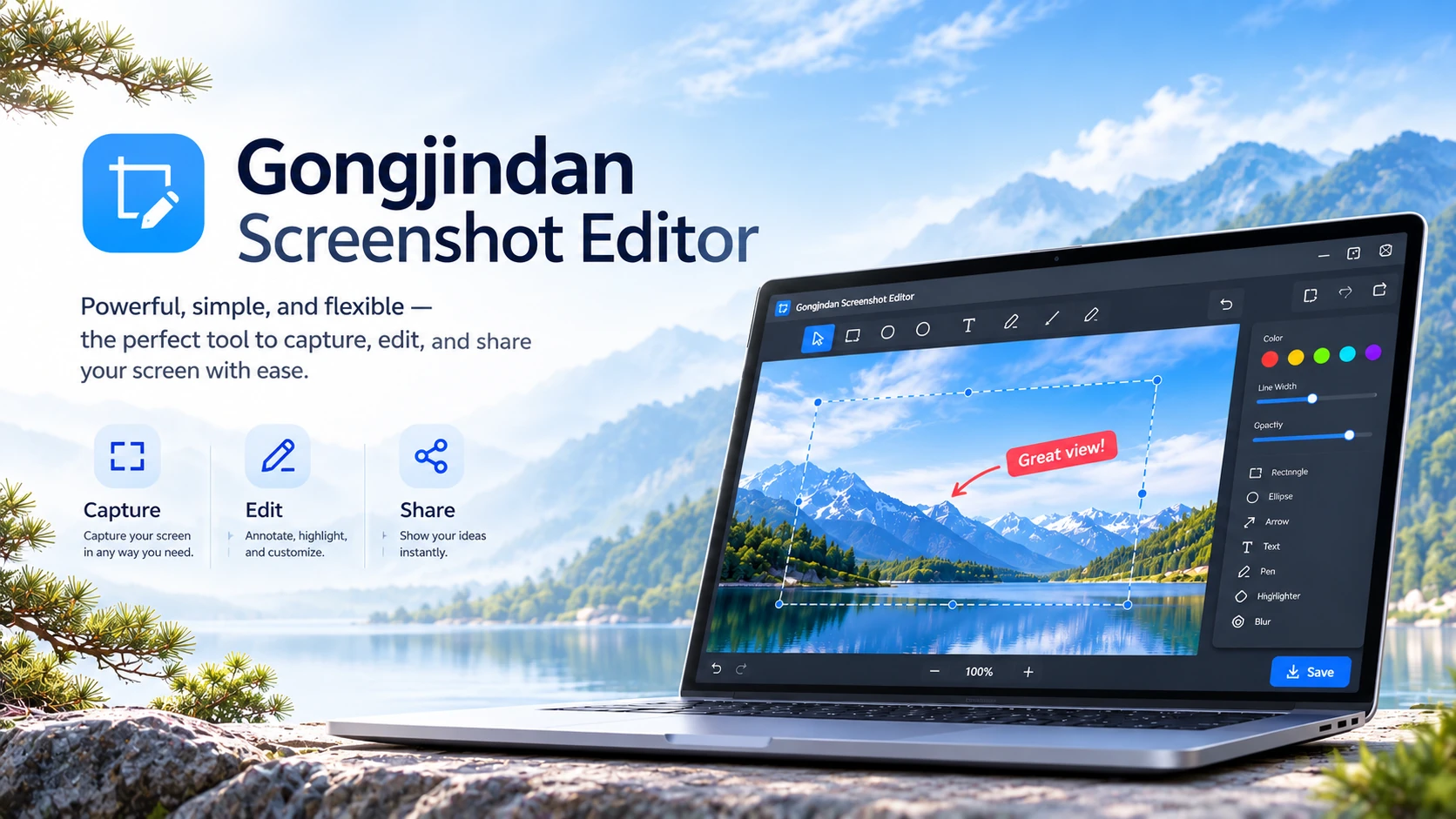
Gongjindan Screenshot Editor (SCR1) is a browser-based screenshot and image editor. Capture a screen, window, browser tab, or camera image; annotate it; and download the result or save a copy to your private gallery.
Get started
- Request an account. An administrator must approve it before you can log in.
- After approval, log in and open Capture & edit.
- Choose Capture and select the screen, window, or tab you want to share. Alternatively, use the camera, import a PNG, JPEG, or WebP image, paste an image, or drop one onto the canvas.
- Select a tool from the left sidebar, then draw or drag on the image. Use the settings above the canvas to change color, stroke width, or text appearance.
- Download your result, copy it to the clipboard, or choose Save privately to create a new gallery image.
Editing tools
- Pen and Highlight: draw freehand or mark an area.
- Arrow, Rectangle, and Ellipse: drag to add a shape.
- Text: click on the image and enter your text.
- Redact: drag over sensitive information to cover it with solid black pixels.
- Crop: drag a rectangle to keep that area.
Undo: Ctrl+Z or Cmd+Z. Redo: Ctrl+Shift+Z, Cmd+Shift+Z, or Ctrl+Y. When typing in a field, these shortcuts apply to that field instead.
Use Fit size for your chosen dimensions or Full HD for 1920 × 1080. Fitting preserves the image’s proportions and adds a white background where needed. Enlarging an image does not create additional detail.
Saving and exporting
Download PNG, JPEG, or WebP, or copy a PNG image to the clipboard. Saving to your gallery creates a new PNG. You can add a title, project, and tags. Editing a gallery image creates a copy rather than replacing the original.
The current upload limit is 20 MiB per image. Gallery limits are 200 images and 200 MiB per account. Editor dimensions are limited to 8,192 pixels per side and 24 million pixels in total.
Privacy and permissions
Editor images are not uploaded to your gallery until you choose Save privately. Downloads and clipboard copies go to your device. Unsaved editor work can be lost when you reload or leave.
Saved images are private to your account through the app’s owner-checked image views. Authorized administrators and server operators may have administrative access; this is not end-to-end encrypted storage.
Review redactions before sharing. Black redaction is flattened into the exported image, but Undo may retain earlier versions in browser memory. An original image already saved in your gallery remains unchanged.
Screen and camera capture require browser permission and HTTPS. Availability varies by browser and device. Capture only material you are authorized to use, and check for private information before downloading or sharing.
Current scope
SCR1 currently provides browser capture, image editing, downloads, and private galleries. Automated website screenshots, OCR, AI analysis, and public sharing links are not yet available.
For questions or account approval inquiries, email j8@j8.co.kr. Never email passwords or sensitive screenshots.